|
|

|
|
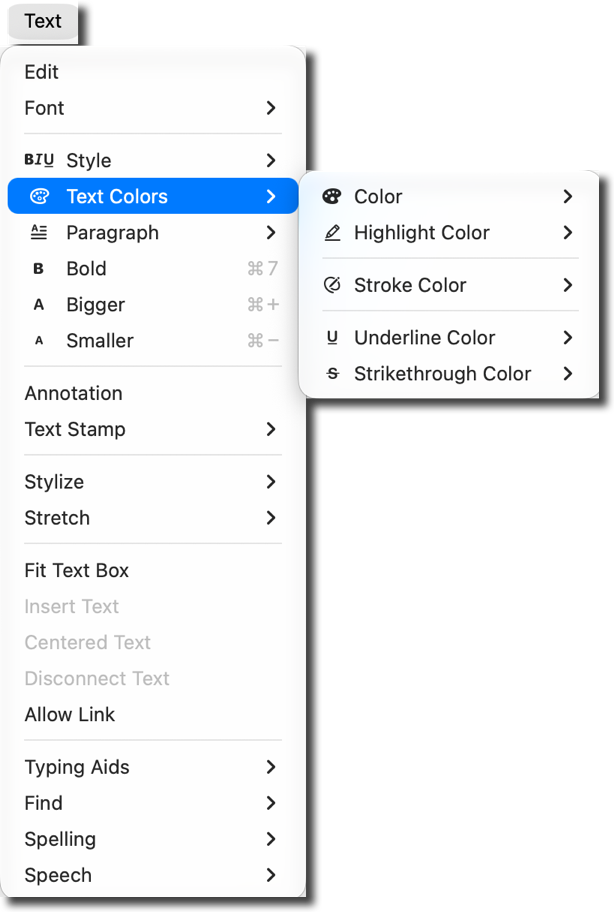
Text Colors Menu
The Text menu's Text Colors submenu offers quick color choices for text and for its highlight, outline, underline and strikethrough marks.
|
Color sets the main color of the text: the solid glyphs, with no outline drawn.
Highlight Color puts a color behind the text, the way a highlighter marks a line on paper.
Text can also be drawn as an outline with a separate fill. Color sets the fill and Stroke Color sets the outline. Turn that appearance on with Stylize, a little further down the Text menu, or in the Graphic Details Inspector.
Underline Color and Strikethrough Color set the color of those marks. By default they follow the main text color; pick a color here to make them differ.
The color used when creating new text is set on the Default Font panel. Use the Default Text Color link on the left to learn about changing that setting.
For a specific color that isn't in these menus, use the Style tab of the Graphic Details Inspector with the text selected.
Where the color goes depends on what is selected:
-
A selected text box that is not being edited: the whole box.
-
A text box in editing mode: the selected range of text.
-
A vector graphic with an annotation: all of its annotation text, or only the range selected in the Annotation parameter palette.
-
A dimension: the annotation rules apply, with separate colors for prefix and suffix text and for the automatic numeric text, set in the Dimension parameter panel's editing pane.
|
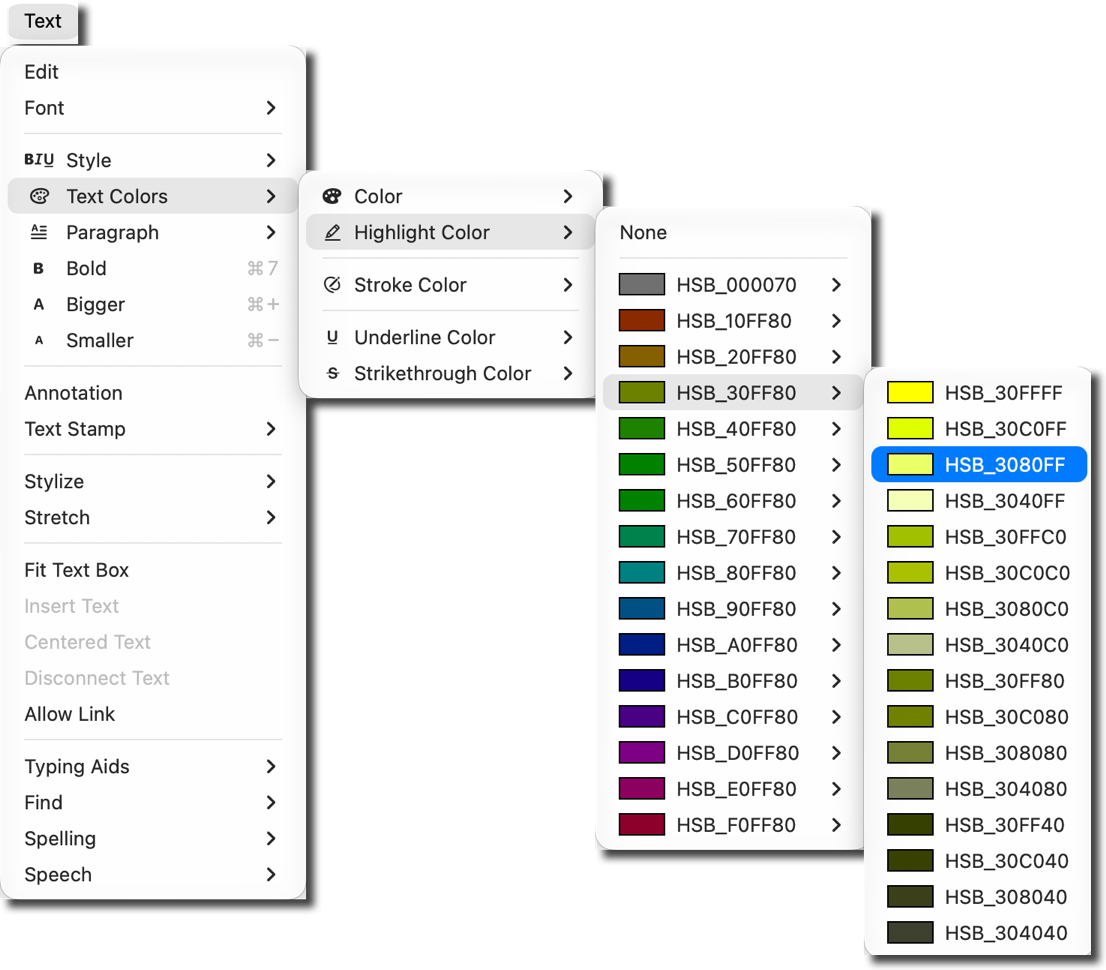
Each menu expands to present its colors in hue order, as in the example shown here.
The colors come from the EazyDraw color list, EazyDraw.clr. Colors added to that list with the main system color picker appear in every EazyDraw color tool the next time the menus are built, so open a new drawing or relaunch EazyDraw to see additions in these menus.
The color list files live in EazyDraw's Application Support folder. Where that folder sits depends on the edition: the direct download keeps it in your home Library folder, which macOS hides by default, and the App Store edition keeps it inside the app's container in the same Library folder. Experienced users can manage and edit the files there with the Finder or Terminal.
Use the Text ▸ Style menu, just above Text Colors, to choose which highlights and markings are applied to the text.
|