

|
|
|
|
|

|
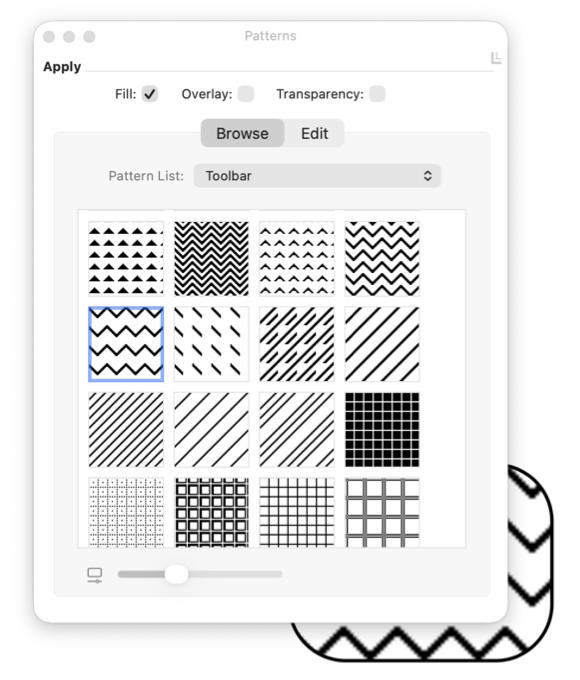
Browsing Patterns The Browse tab shows every pattern in a list as a live tile, drawn just as it will fill your graphic. Choose a list from the Pattern List popup, then click any tile to fill the selected graphics with that pattern — there is no need to open a pattern for a closer look first. The Patterns panel is opened from the Tools main menu. The Pattern List popup gathers EazyDraw's prepared patterns into groups — Textures, Geometric, Hatches, Wallpaper, Heritage, and Toolbar — so you can move quickly to the kind of pattern you have in mind.
EazyDraw installs six groups of patterns, twenty-one categories in all, with more than 550 tiles that repeat seamlessly in your designs. The table at right shows how the categories are grouped. The Apply row above the browser — Fill, Overlay, and Transparency — keeps your settings as you browse, so every pattern you click is applied the same way. The Fill check box is used to turn the pattern on for the selected graphic(s). Check the box to use the pattern as the one and only fill effect for a graphic. The Overlay check box is used to apply the pattern on top of other color fill effects. The individual pattern colors need to support transparency for this effect to be visible. The Transparency check box can be used as an indicator to verify that the pixels of a bit map can support opacity as a color variable. The check box can also be used to explicitly convert the colors of all pixels to include or exclude the alpha channel (opacity value) byte. If the conversion is not possible the action will simply beep and no conversion will take place. Transparent Conversion Color: When converting from an opaque image to a transparency supporting image, the background color of the drawing is used as the "transparent color". This will match the appearance on the drawing. This mechanism may be used as a tool to set a desired color to "clear color" for a pattern; this may be quicker than painting individual pixels. Each pattern is a color. Once a category has been browsed here its patterns are also offered by the standard macOS Color Picker, and the Edit tab lets you inspect or repaint any pattern pixel by pixel. |