|
Automation API
The Automation API lets you drive EazyDraw from your own scripts — open and control drawings from Python, a shell, or any tool that can make a web request. The service runs only on your own Mac, stays off until you turn it on, and requires a private access token on every request.

|
|
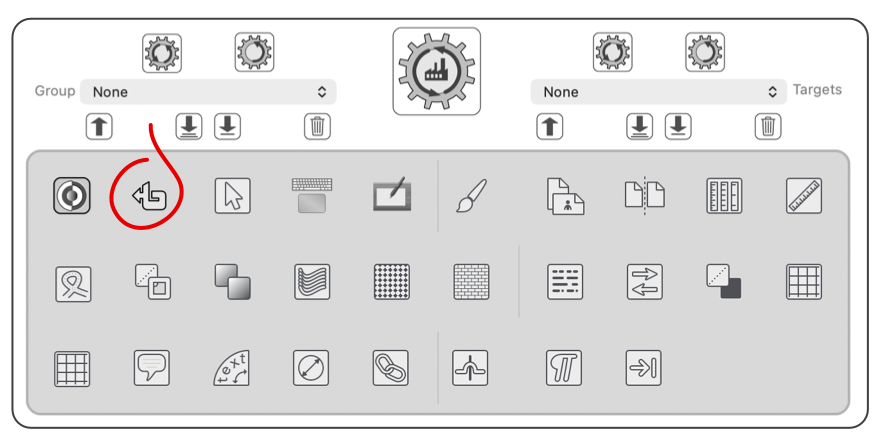
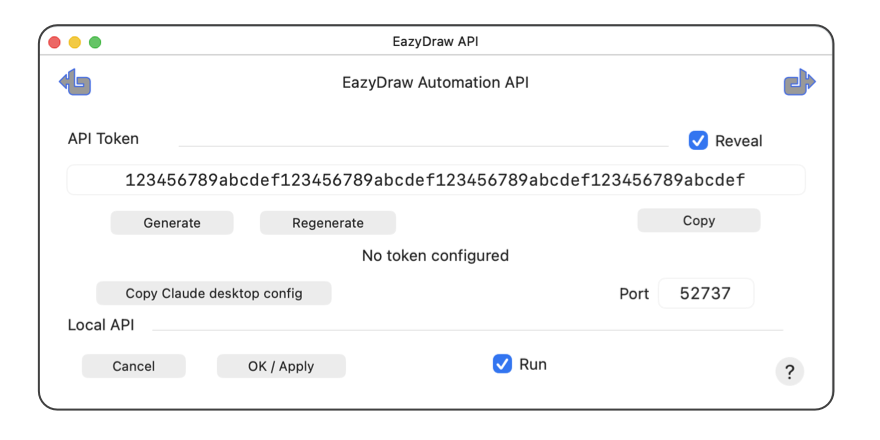
Open EazyDraw Settings, then click the Automation API button — circled above. The Automation API panel appears, shown below. If you are using the App Store version of EazyDraw, your automation uses a unix socket (a special file) and your parameter panel shows this system location instead of a port number.
|
|
Create an Access Token
The access token is what protects the service: every request your script makes must present this token, so only programs you have given it to can reach EazyDraw. Click Generate to create a token. Until one exists, the status line reads “No token configured.”
Click Copy to place the token on the clipboard, then paste it into your script or wherever your automation reads its settings. Turn on Reveal to show the token characters on screen; leave it off to keep the token hidden. Regenerate replaces the current token with a new one — do this if a token may have been exposed. Any script still using the old token is then refused until you give it the new one.
Copy a Claude Desktop Configuration
Copy Claude desktop config prepares a ready-made setup for connecting Claude Desktop, with your access token and port already filled in, and places it on the clipboard. Generate a token first — the button becomes available once a token exists. Paste the copied text into Claude Desktop’s configuration to grant it access to EazyDraw; the
Connect Claude Desktop
page walks through the full setup. The script copy is the correct one for your system and installation of EazyDraw, App Store sandboxed or direct download and a local host port.
Python Scripts
For your own scripts, the eazydraw package on the Python Package Index provides a Python client with a method for every API call, and the same Claude Desktop connector described above. Install it with pip install eazydraw (or pip install "eazydraw[mcp]" to include the connector), then pass the token from this panel to EazyDraw(token=...). The package page at
pypi.org/project/eazydraw
has a quick start, and the
API Reference
describes every call.
Turn the API On
Use the Run checkbox, in the Local API section, to start and stop the service. With Run checked, EazyDraw listens for requests from scripts on this Mac; uncheck it to shut the service off completely. The API is off by default.
The Port field, also in the Local API section, sets the network port the service listens on — your scripts connect to EazyDraw at this number. Any port from 49152 to 65535 is allowed; 52737 is suggested. Change it only if another program on your Mac is already using that port.
Mac App Store edition: there is no network port. The service listens on a private socket inside the app’s own container, which only your user account can reach, and the panel shows Socket with the path in place of the Port field. Nothing needs configuring; scripts and Claude Desktop connect to that path (see the
API Reference
under Server, Transport).
Apply Your Changes
Click OK / Apply to save the settings and apply the Run state. Cancel closes the panel without applying changes.
|
The service listens only on your own computer and never accepts connections from the network or the internet. Together with the required access token, this keeps automation private to programs running on your Mac. Edits made through the API respect the same locks you have set in the editor and are undoable, exactly like a hand edit.
Related Information
Connect an AI Assistant
You can connect an AI assistant such as Claude Desktop to EazyDraw and work on a drawing by asking in plain language — fill named fields, place images and PDFs, organize layers, switch layer configurations, and render the result so the assistant can see it.
Connect Claude Desktop
walks through the setup.
Drawing File Format — Flat, Optimized, and UUID
The API reads and writes the EazyDraw JSON drawing file, and the file’s format matters for automation. Choose the Flat serialization format for any drawing an external program will open: every graphic then carries its full set of attributes inline, with no shared-reference lookups, so a script can read and write the drawing with no knowledge of EazyDraw’s internal storage. The Optimized format is more compact and is best for everyday editing, but it is not intended for automation. Enabling UUIDs gives every graphic, layer, and group a stable identifier, so a script can address a specific object by identity even after the drawing is edited and saved. You set both of these on the
Drawing Properties
panel.
Working with Library Content
Much of what the API does is place and restyle graphics drawn from your libraries. These pages explain the behavior the API builds on:
Library Properties
— how a library element stores the look it transfers to a graphic.
Transfer Scope
— which attributes a library element applies when it is transferred onto a graphic.
Element Presentation
— viewing and managing the elements in a user library.
Full API Documentation
The complete reference — every request and response, the status codes, and example scripts — is in the EazyDraw Automation API documentation:
EazyDraw Automation API Reference
.
|